User Invites
Learn how to invite users to your pfManager portal and manage user access.
Overview
User invites allow you to add team members to your pfManager portal with specific roles. Invited users receive an email with an invitation link that expires after 7 days.
Inviting a User
- Log into pfManager at https://app.pfmngr.com/settings
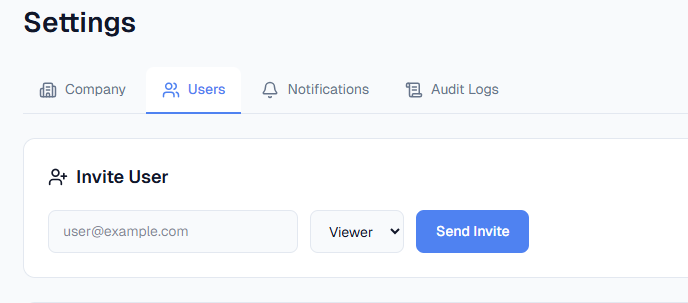
- Navigate to the Users tab
- In the "Invite User" section, you'll see three fields:
- Email Address: Enter the user's email address (e.g.,
user@example.com) - Role: Select the user's role from the dropdown:
- Viewer: Read-only access to view firewalls and reports
- Admin: Full access to manage firewalls, policies, backups, and settings
- Send Invite: Click the blue "Send Invite" button to send the invitation
- Email Address: Enter the user's email address (e.g.,
Invitation Process
For the Inviter
After clicking "Send Invite":
- The invitation link will be displayed at the top of the page for 30 seconds
- You can copy this link if needed during this time
- The link expires after 7 days
For the Invited User
- The invited user will receive an email containing the invitation link
- They should click the link in the email
- The link will take them to pfManager where they can:
- Create their account (if they don't have one)
- Accept the invitation
- Access the portal with their assigned role
Important Notes
- Link Expiration: Invitation links expire after 7 days from the time they are sent
- One-Time Use: Each invitation link can only be used once
- Role Assignment: Users can only be assigned one role (Viewer or Admin) at a time
- Email Required: A valid email address is required to send invitations
Troubleshooting
User Didn't Receive Invitation Email
- Check the spam/junk folder
- Verify the email address was entered correctly
- Ensure your email service isn't blocking pfManager emails
- The invitation link may have expired (7-day limit)
Invitation Link Expired
- If the 7-day period has passed, you'll need to send a new invitation
- Navigate to Settings > Users and send a new invite
Need to Change User Role
- After a user has accepted their invitation, you can change their role from the Users settings page
- Only Admins can modify user roles
Next Steps
After inviting users:
- Users will appear in the Users list once they accept their invitation
- You can manage user access and roles from the Settings > Users page
- Viewers can access the portal but cannot make changes
- Admins have full access to manage firewalls and settings